Some cards never offer Apple Wallet. WalletKit fixes that: scan the barcode, pick a template, style it your way, and tap Add. Store cards, coupons, tickets, boarding passes — your whole pocket, in Wallet.
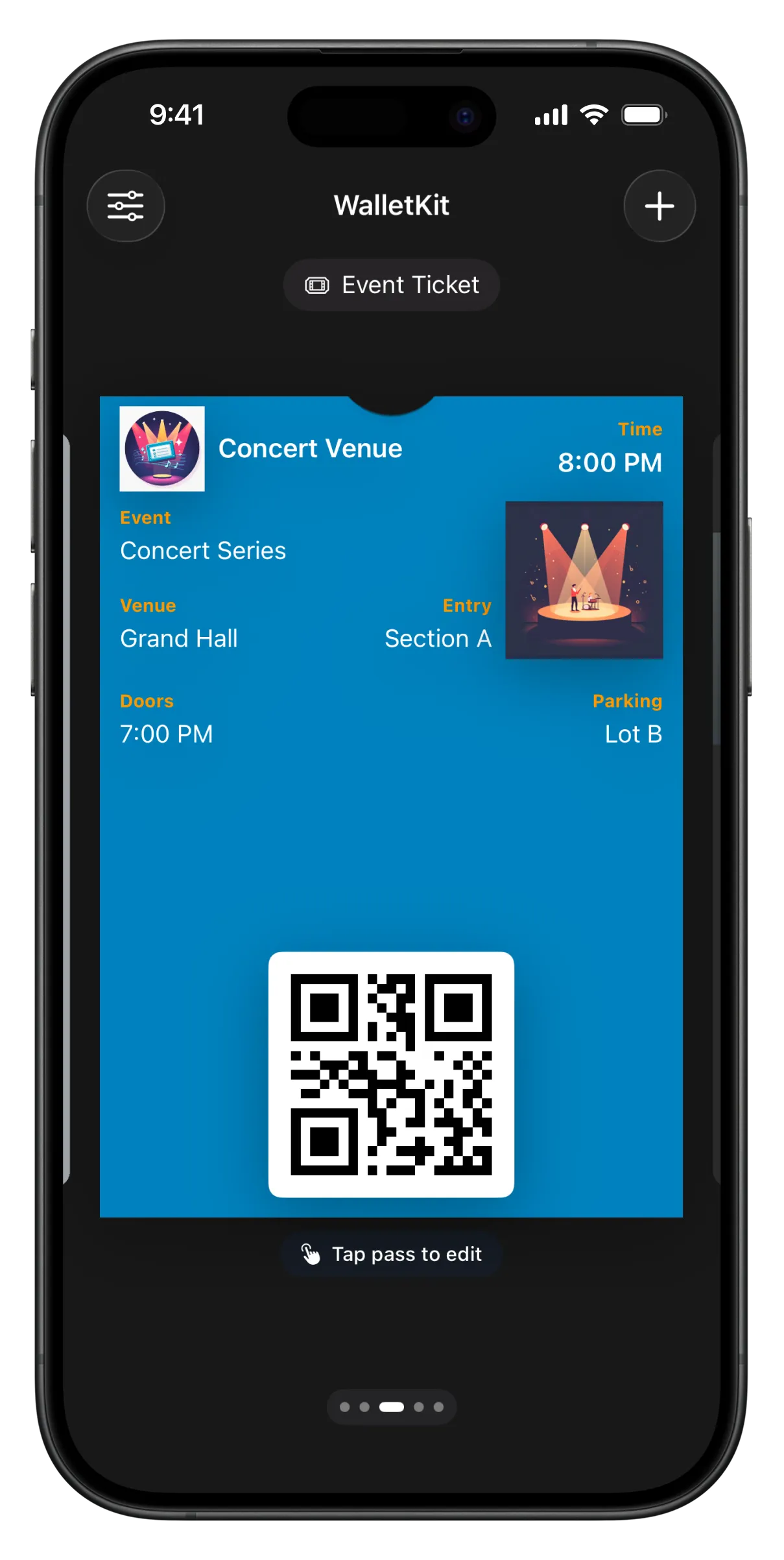
Build it, style it, add it — and edit anytime without duplicates.
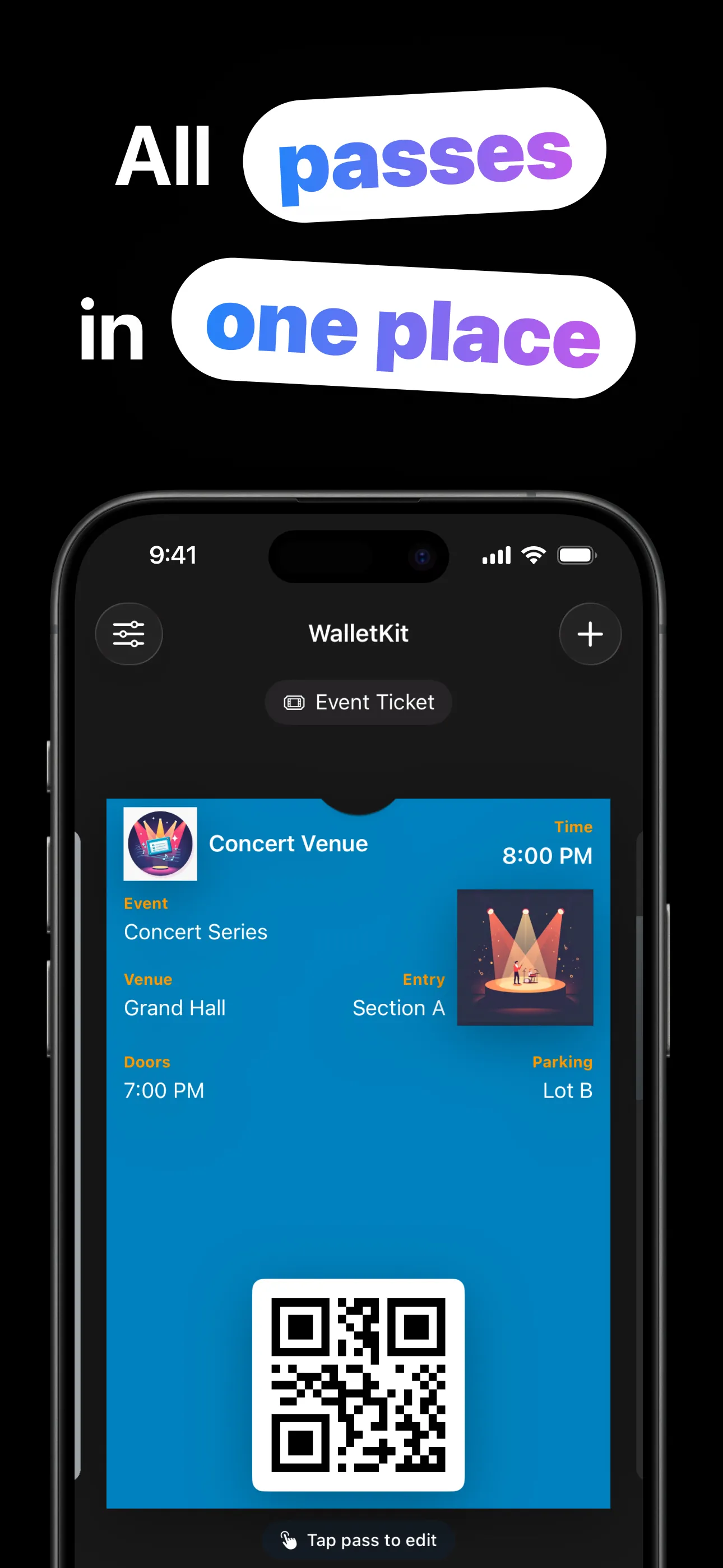
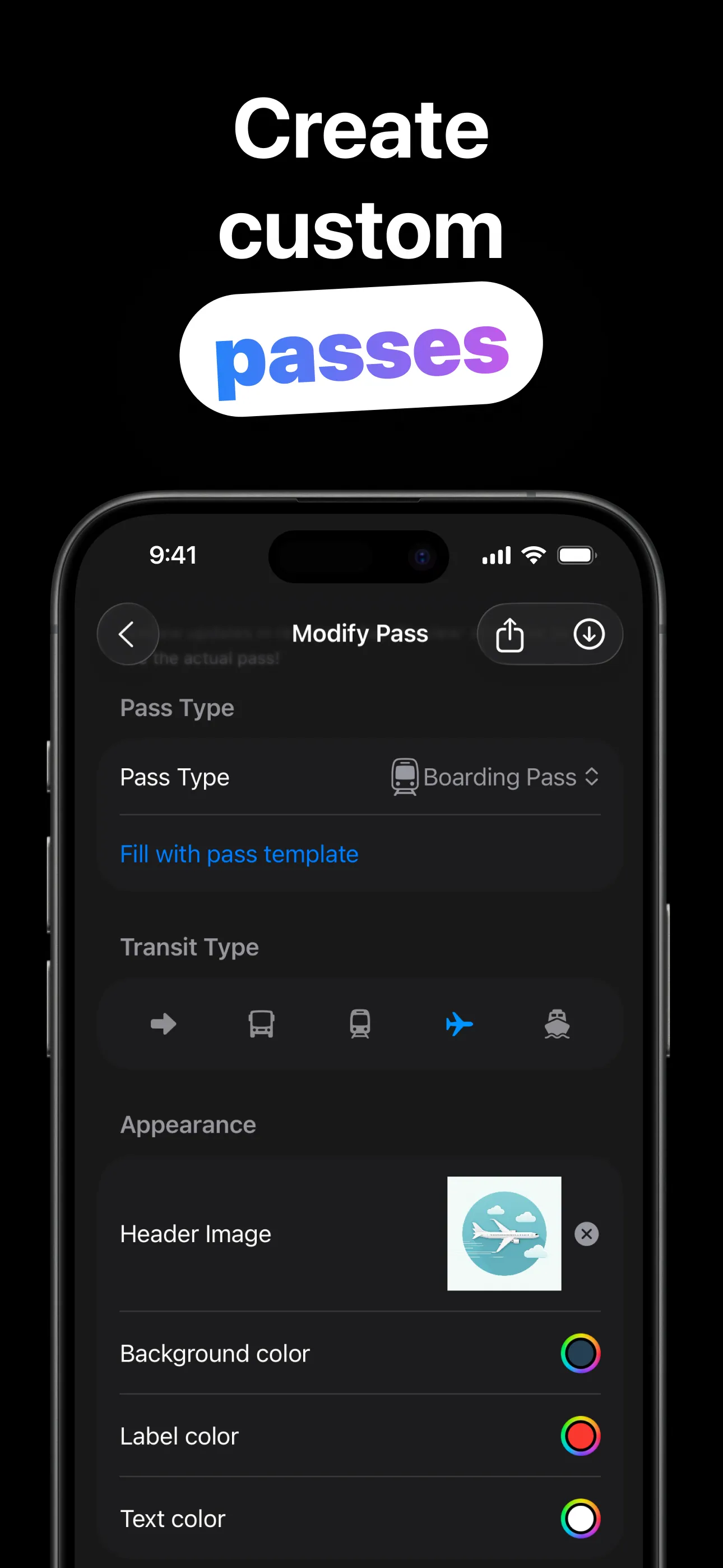
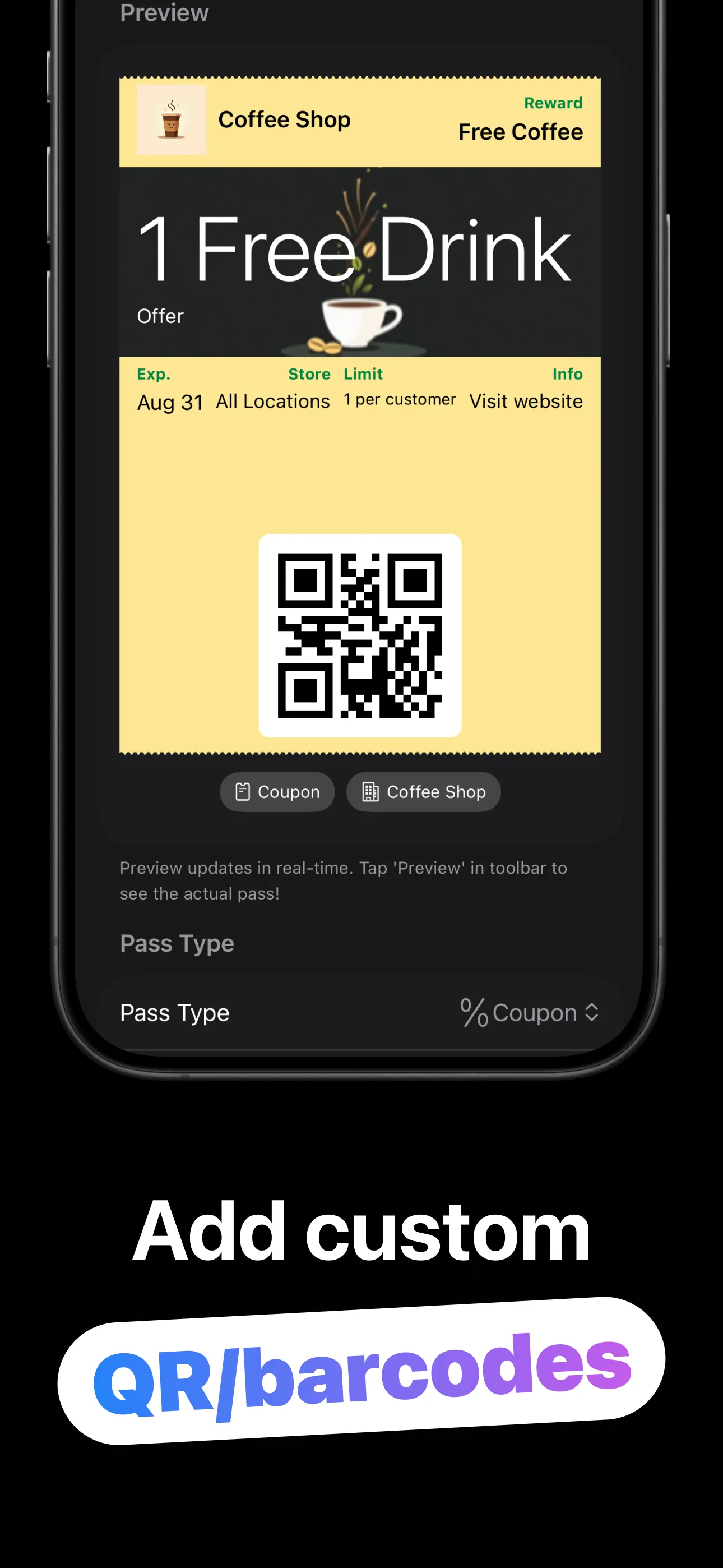
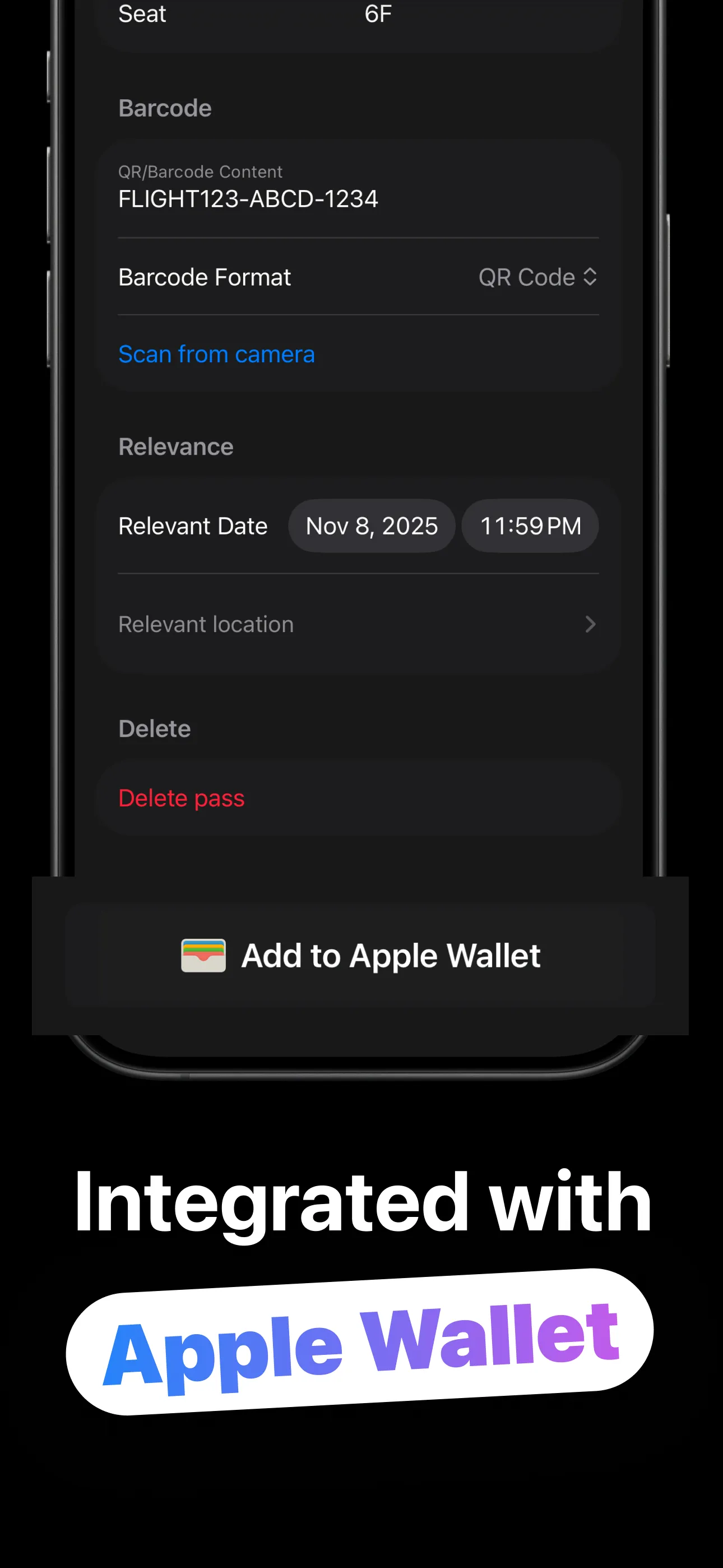
From any card to a Wallet pass in four steps.
15 starting points: Coffee Loyalty, Gift Card, Concert, Flight, Student ID and more.
Point the camera at your existing card. The scanner reads 10 formats and fills in the code.
Colors, logo, header image, every field. Tap the live preview and edit directly.
One tap and it's a real Apple Wallet pass. Edit later and it updates, with no duplicates.
Real Wallet passes with real Wallet superpowers.
Store cards, coupons, event tickets, boarding passes (with transit icons) and generic IDs.
Generate QR, PDF417, Aztec or Code 128; capture existing codes with the 10-format camera scanner.
Three color pickers, logo text, header and thumbnail images from camera or library, seven field pairs.
Add up to 10 locations and the pass surfaces on your lock screen when you arrive — like magic, but standard.
Stable serial numbers mean an edited pass replaces the old one in Wallet, never a pile of duplicates.
Passes live on your device, with no account. Share any pass as a .pkpass file; on iPad, preview and save.
The answers to every “can I put this in Wallet?” question.
Loyalty, membership and gift cards without an Add-to-Wallet button, fixed in minutes.
Read the guide → CreateFrom template to Wallet: the full design workflow, field by field.
Read the guide → QR CodesWi-Fi codes, ticket QRs, links: one scan away from living on your lock screen.
Read the guide → BarcodesWhich barcode format to pick so the register scanner actually beeps.
Read the guide → LocationsLocation relevance explained: your coffee card on the lock screen at the café.
Read the guide → iPadThere's no Wallet app on iPadOS — here's the workflow that works anyway.
Read the guide →Quick answers about creating Wallet passes.
Recreate it: pick a template, scan the card's barcode, style the pass, Add to Wallet. It scans at the register like the plastic. Learn more →
All five Wallet types (Store Card, Coupon, Event Ticket, Boarding Pass, Generic) via 15 templates. Learn more →
Passes carry QR, PDF417, Aztec or Code 128; the camera scanner reads 10 formats to capture existing codes. Learn more →
Yes. Up to 10 locations per pass trigger lock-screen relevance nearby. Learn more →
Yes. iPadOS has no Wallet app, so WalletKit previews and shares/saves .pkpass files instead. Learn more →
No. Stable serial numbers mean re-adding an edited pass updates the existing one.
Every card, coupon and code — in Apple Wallet by tonight. Free to try.
Download on the App Store